
Quickly search and build data views using keywords
Search Your Data
What This Helps You Do
The Reports Dashboard includes a Search data feature that allows you to quickly explore your operational data using simple keywords.
In addition to using dashboards and filters, you can type search terms to generate charts and tables automatically.
Search works best when you describe the fields or data you want to see.
Step 1 – Open the Search Bar
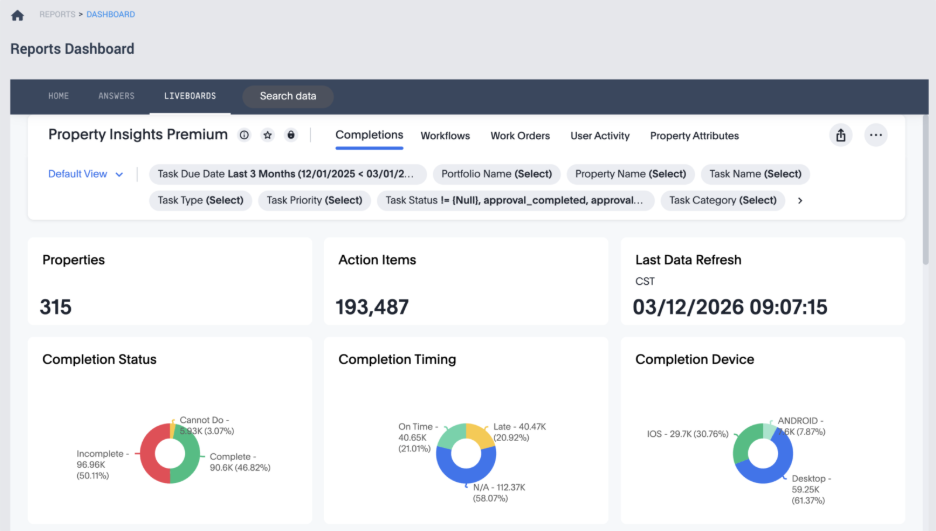
Click Search data in the top navigation bar of the Reports Dashboard.
Step 2 – Get ready to Search
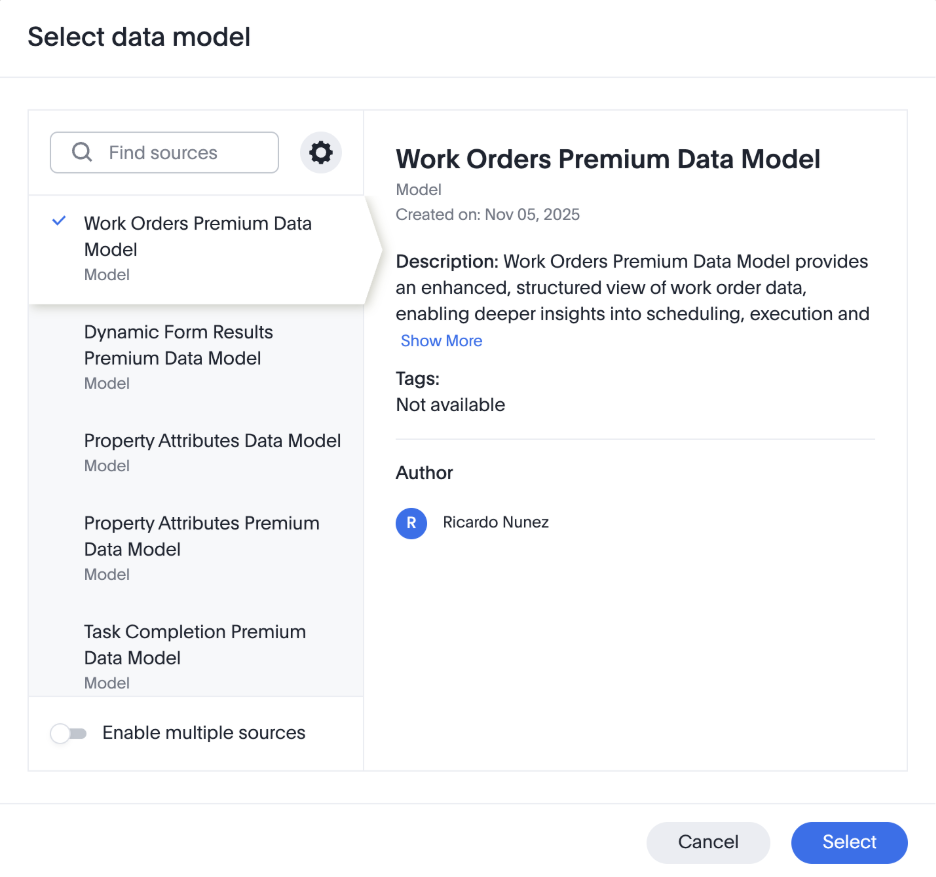
Select the dataset you want to search using the drop-down menu on the left side of the Search bar.

Datasets are organized groups of data based on different product areas.
Step 3 – Search Your Data
Once you’ve selected the dataset, type keywords into the Search bar related to the data you want to see.
Examples:
- incomplete Task Name Task Id for [Property Name]
- This returns a list of incomplete tasks, including the Task Name and Task Id for a specific property.
- Work Order Status by Property Name unique count Work Order ID
- This will give you a count of Work Orders by Status for each Property.
- Tip: Make sure you have the Work Orders Data Model selected.
- Complete inspection for [Property Name] this year
- This will give you a list of completed inspection tasks for a specific property within the current calendar year.
- Unique count Task Id incomplete by Property Name last month
- This will give you a count of Incomplete Tasks per Property for the previous calendar month.
The system will automatically generate a chart or table based on your search.
Step 4 – Refine Your Results
You can refine your search by adding additional fields or filters.
Examples:
• task status incomplete by property name
• unique count Work Order ID by Technician
Adjust your search until the results show the information you need.
Step 5 – Save a Useful Result
Once you find a view you want to reuse:
- Click Save
- Add it to a dashboard or keep it as a saved view.
Saved views can also be added to a Liveboard, allowing you to build dashboards from search results.
Next Steps
- Try searching for a different property or time range.
- Refine a search by adding additional fields such as Property Name, Task Status, or Technician.
- Save a useful search result and add it to a Liveboard.