
Download an Incomplete Task Report
This example shows how to use dashboard filters to identify incomplete tasks across your properties and download the results as a report. You can use the same process to download reports for other filters as well.
Overview
This example shows how to use dashboard filters to identify incomplete tasks across your properties and download the results as a report. You can use the same process to download reports for other filters as well.
How To Find Incomplete Tasks in the Reports Dashboard
First, open the Reports Dashboard by clicking Reports in the left navigation bar.
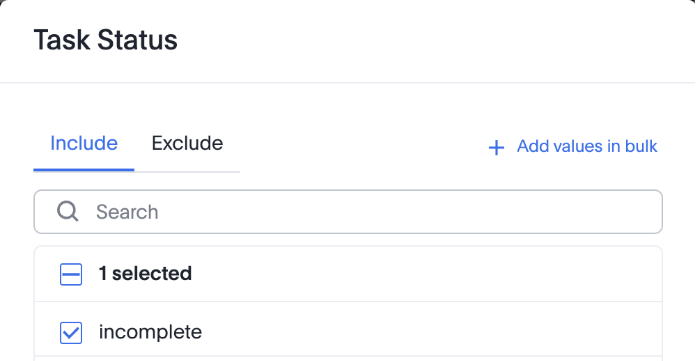
- Set your dashboard filters. The only filter you have to use for this report is:
- Task Status include Incomplete
- Task Status include Incomplete
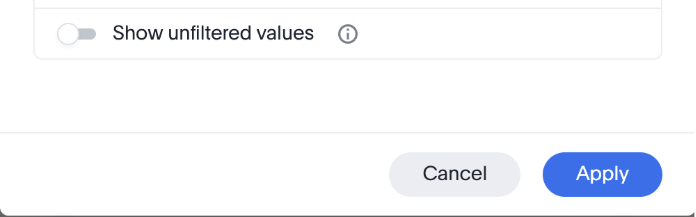
- Once set, click Apply.
- The dashboard refreshes and displays only incomplete tasks.
From here, you can download the data from the filtered dashboard.
- Click the three-dot menu at the top-right of the Reports Dashboard.
- Click Download PDF in the menu.
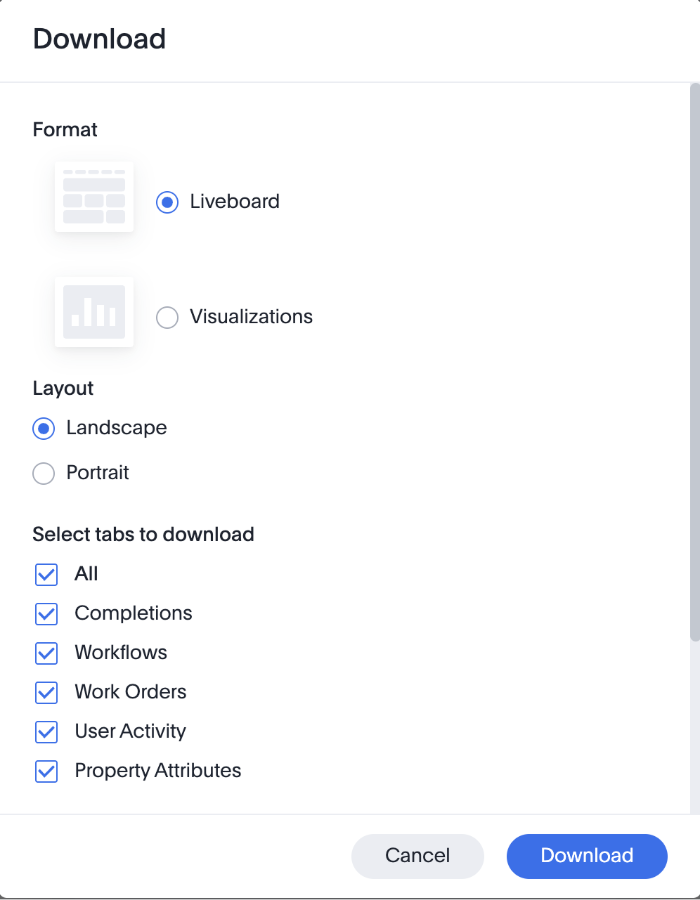
- You will then be presented with several options for downloading the filtered dashboard to a PDF.
- Make your selections, then click Download.
- It may take several moments for the report to generate, but it should download through your browser automatically after a few moments.
You can also download data from individual widgets if you only need a specific chart or dataset.
- Click the three-dot menu at the top -ight of a Widget that appears when you hover your mouse over it.
- Click Download in the menu
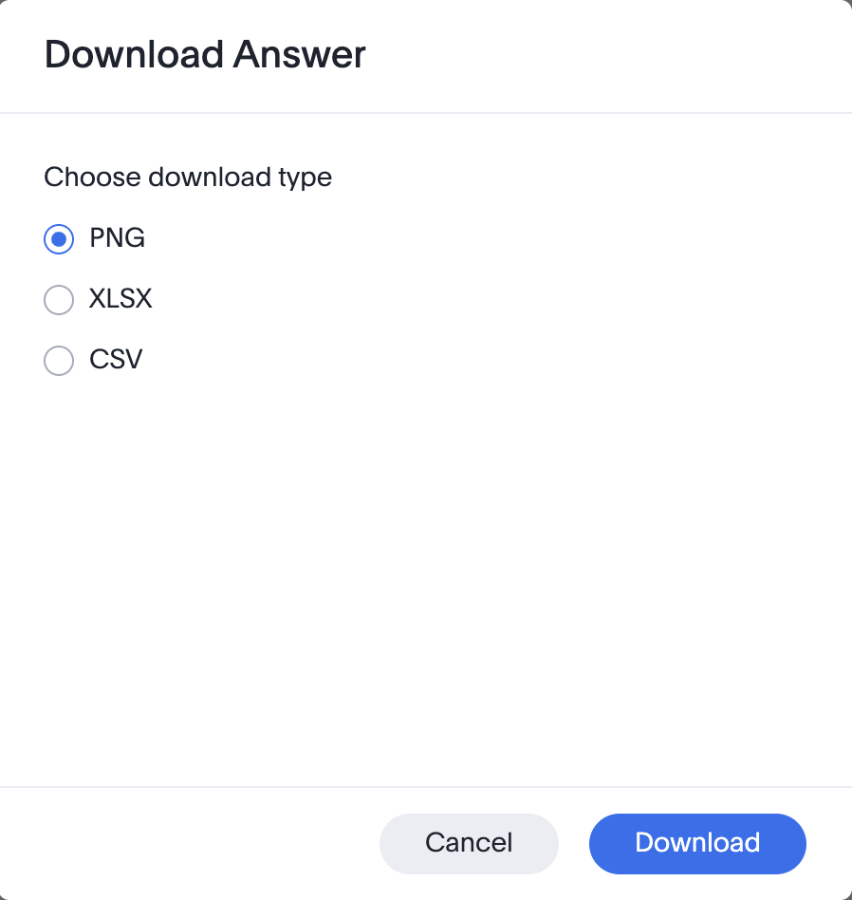
- Select the format you would like to Download your data in:
- Once selected, click the blue Download button and the data should be downloaded after a few moments.
Next Steps
- Try downloading a report for another filter.
- Explore additional filters.
- Download data from a specific widget.