
Create a Simple Liveboard
Liveboards allow you to create custom dashboards tailored to your operational needs.
What This Helps You Do
Liveboards allow you to create custom dashboards tailored to your operational needs.
You can build a Liveboard to track things like:
- incomplete tasks by property
- inspections completed this week
- work orders by status
Step 1 – Start a New Search
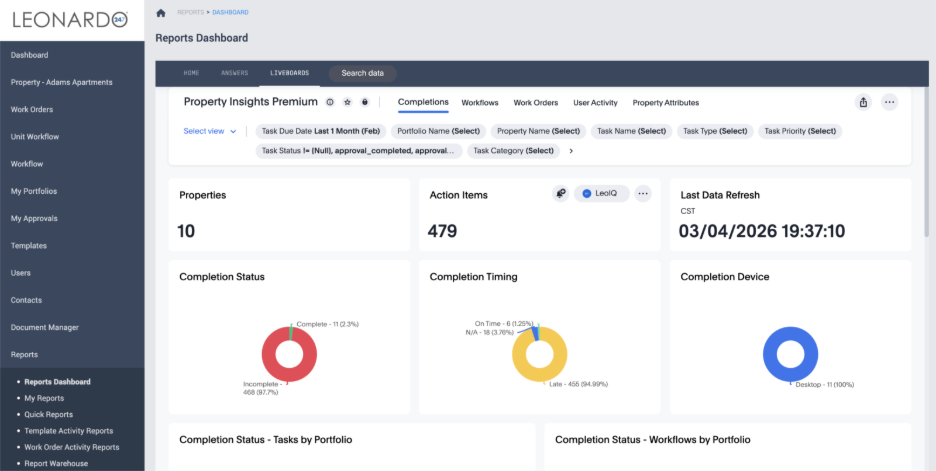
- Click Search Data in the top navigation bar of the Reports Dashboard
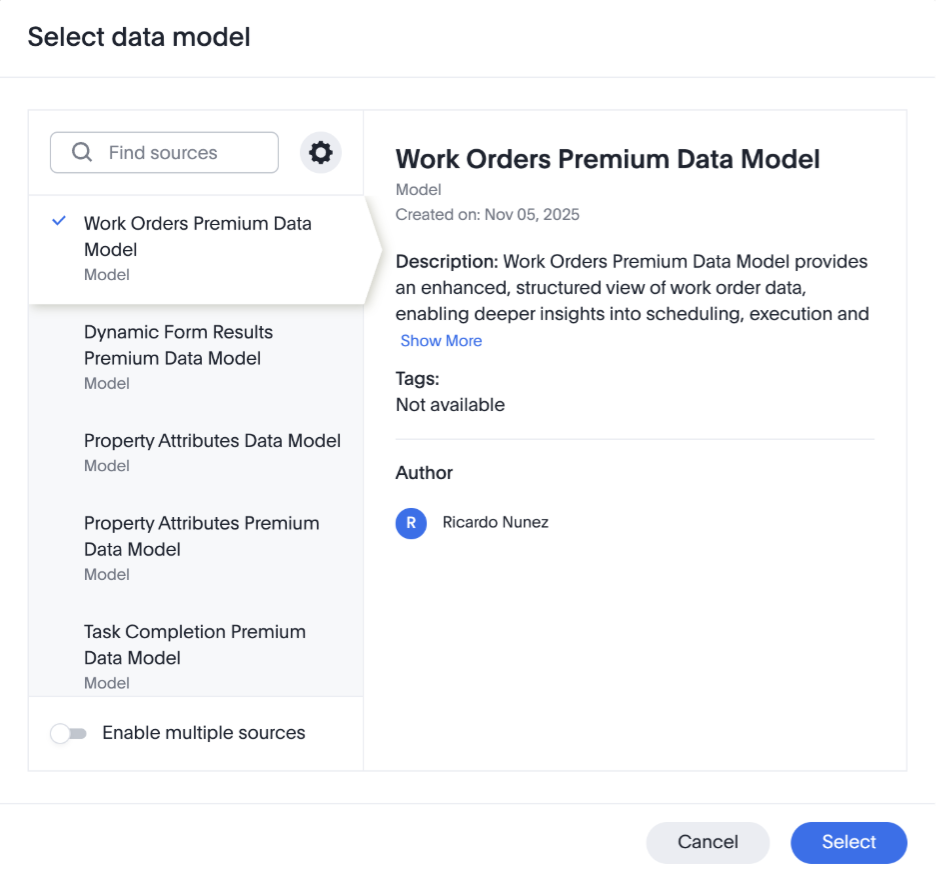
- Choose the dataset you want to search using the drop-down menu on the left side of the Search bar.
Step 2 – Use Keywords and Select Fields
Reports Dashboard allows you to use keywords to quickly search and visualize data.
Add fields such as:
- Property Name
- Task Status
- Task Id
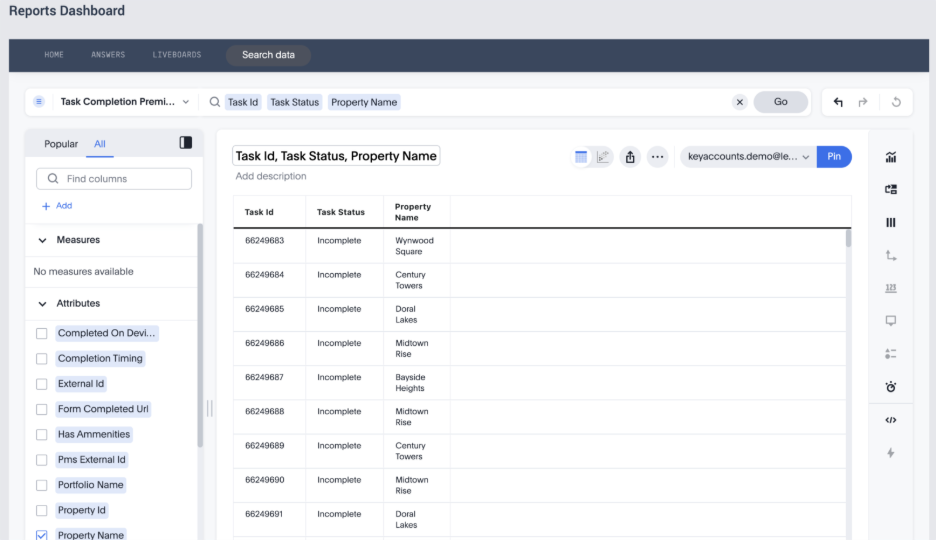
This will generate a data table.
Now, add keywords to build your analysis:
- Unique count Task Id
- By Task Status
- For [Property Name]
This will give you a visualization for the Unique count of Tasks by Status for a specific Property.
Select a visualization type on the right-hand side.
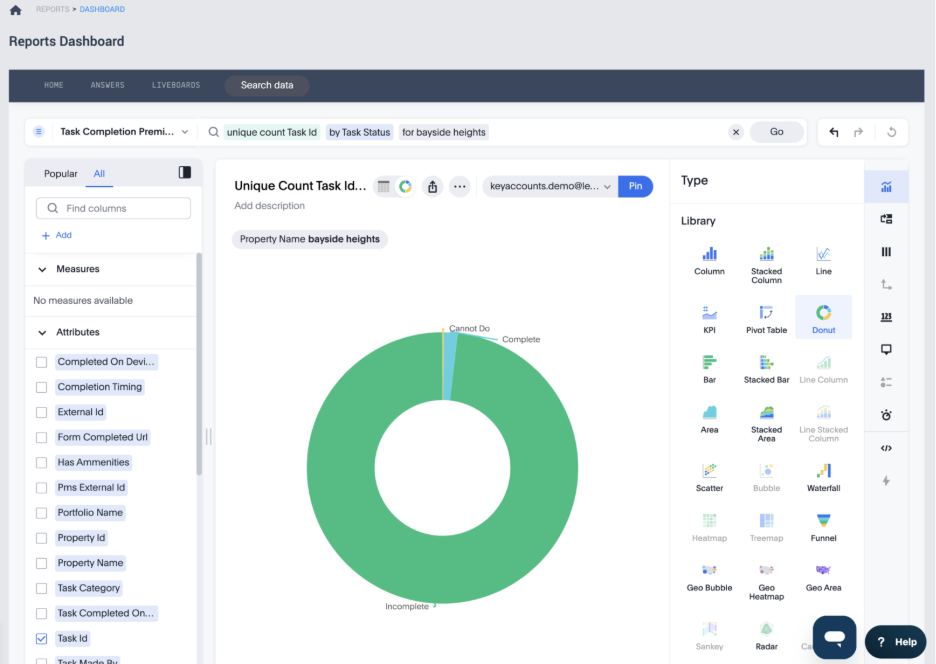
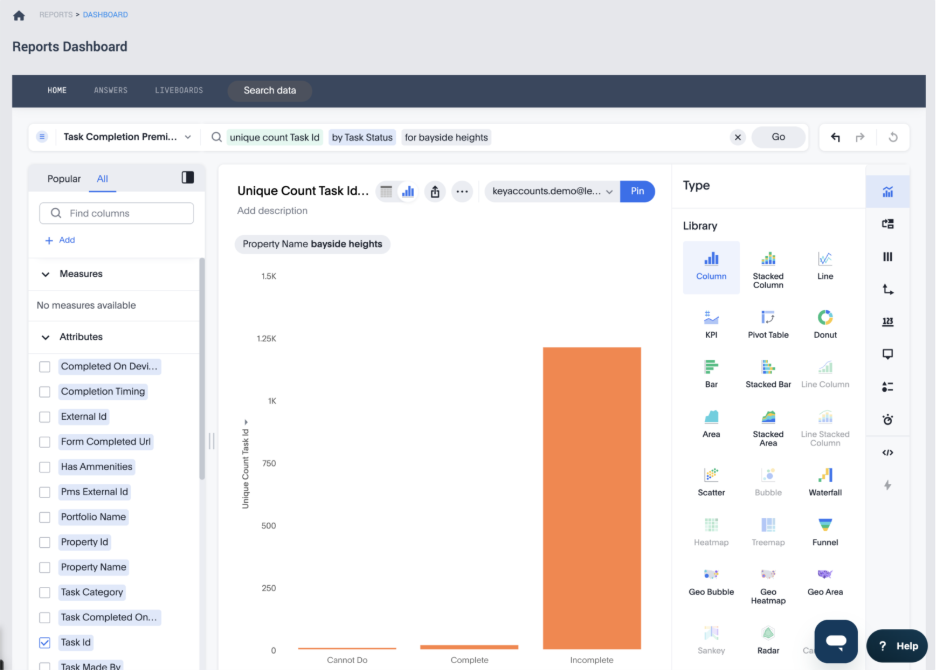
Once you have the right visualization selected, it’s time to save the Answer.
Step 3 – Save the Answer
Click Save and give the analysis a name and description.
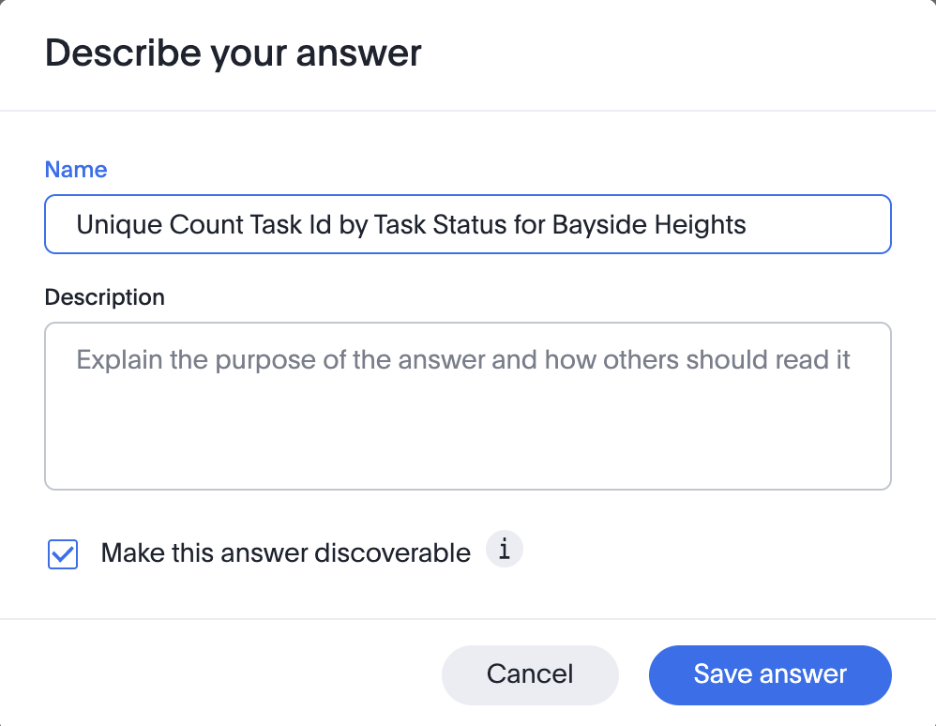
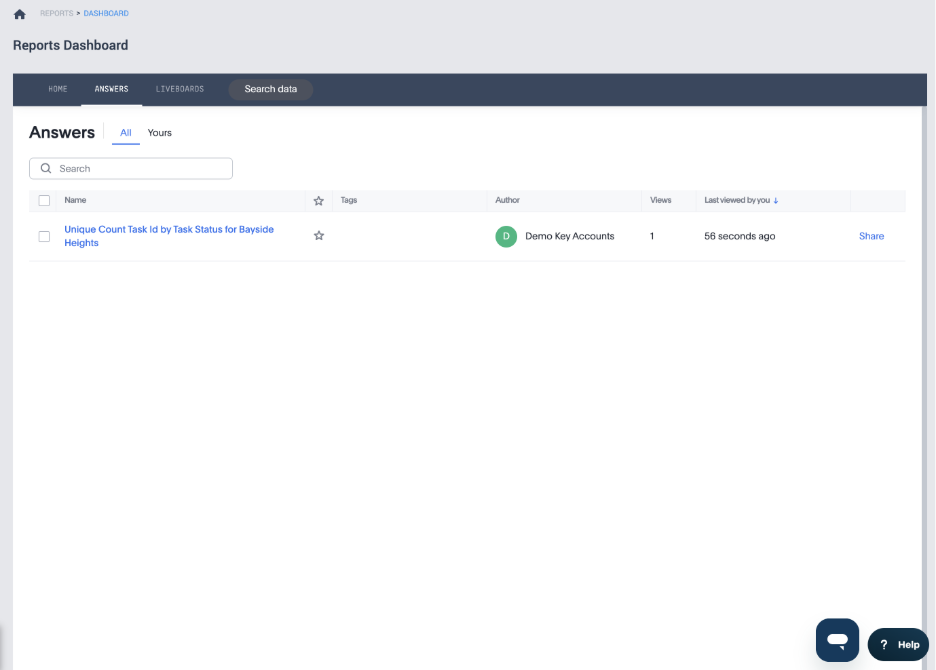
Once your answer has been saved, you can find it in the Answers section of the Reports Dashboard.
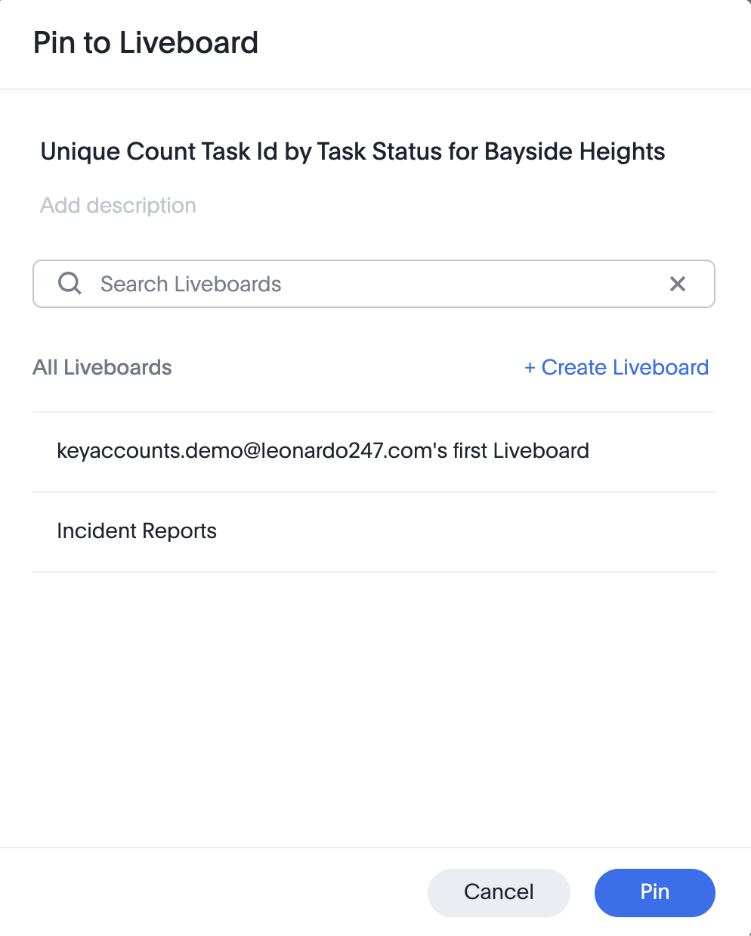
Step 4 – Add to a Liveboard
Select Pin to Liveboard and either:
- Pin the Answer to an existing Liveboard
- Create a new one
Next Steps
- Add additional saved answers to your Liveboard.
- Create Liveboards for different operational views such as inspections or work orders.
- Share a Liveboard with your team.